
From the Art+Logic archive · written in 2013. The tools may have moved on; the thinking still holds.

I’m a doodler. I’ve always enjoyed doodling. Even as a kid, anything within the diameter of our kitchen phone chord’s reach was covered in spirals, patterns, 3D names and numbers. School notebooks and folders were tricked out with ballpoint pen illustrations, band name fonts, hearts and peace signs.
Now I’m all grown up and I get paid to doodle. Life is good. :)
Of course, most of what I do on the day-to-day consists of code and CSS styles, but on occasion, a logo or custom set of icons is requested, and I’m always happy to oblige. It’s refreshing to bust out the moleskine and my little box of markers. Typically, I would sketch and scan, importing the images into Photoshop for some cleanup and colorization. But, being on the road 90% of the year has forced me to rethink my toolbox, as well as my process. I’ve taken hi-res photos of my illustrations, which works out pretty well, but it still requires a bit of cleanup and squeezes in that extra step of having to transfer the image to its final destination.
smartphone/tablet drawing apps
One day, while assessing my menagerie of gadgets, it dawned on me that I probably have what it takes to rig up a digital drawing tablet. I found a few drawing apps for my vintage first-generation iPad (such as iGraph, Paper by Studio 53, Procreate, ArtRage, Sketchbook Pro) but most of them either had not-so-great reviews or failed to pair up with my laptop, requiring, once again, saving the image on one gadget to import into another.
I recently bought a Samsung Galaxy S4. Being the latest and greatest gadget in the Universe, as per the commercials anyway, I imagined it would have better touch and pressure sensitivity than my vintage iPad, so I convincingly pursued that path for a few days. I tried VirtualTablet (crashed my phone), GfxTablet and S-Pen (not Mac compatible) and a few others… no bueno. Nothing was working.
I was surprised there weren’t already dozens of great apps for this! I’m sure they’re in the works, but time was ticking and my illustration project deadline was approaching.
stylus options
Although the stylus will only get you as far as your device will allow, and having failed to find a solution for my iPad or Galaxy, it’s still worth noting that there are some super sexy styli out there!
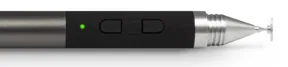
Adonit Jot - Pressure sensitive, palm rejection (so it only registers the pen tip, not your hand), shortcut buttons, bluetooth, fine point, dampening tip. ($89) Looks cool, but only if you plan to draw/write on your iPad as mentioned in the above tested apps.
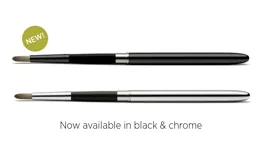
Sensu Brush - I really want to play with one of these, although, again, it didn’t fit my needs, but oooh la la!! It has a rubber nib as well as a real hair brush for those fancy watercolor and inky strokes!! ($39) Works great in the sketching and art apps listed above.
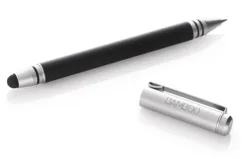
Bamboo Stylus Duo - Yet another beautiful stylus, but my favorite thing about this one is it led me to my ultimate solution.
Bamboo is made by Wacom.
Wacom makes digital drawing tablets.
Although I really didn’t want to add another gadget to my backpack, this one made too much sense. Plus, it’s smaller and lighter than last month’s issue of Wired magazine. And under $100. Problem solved.
bamboo digital drawing tablet
Bamboo drawing tablets come in a few flavors, ranging in size and features: Connect, Splash, Create and Capture.
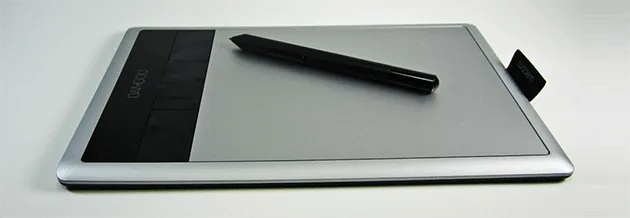
I went with the Capture ($79) and, so far, I’m incredibly happy with it. It was easy to install and I was doodling within minutes of taking it out of its au naturale recycled packaging. (Nice touch, Bamboo!)
I was all thumbs at first, like a toddler learning how to draw… with his feet. But the more I played with it, the easier it became. A colleague told me to unplug my mouse, tape up my touchpad, whatever it takes to force myself to use it for everything. There’s still a little guesswork as to where I am when the stylus is hovering, selecting tools, etc. But again, the more I play with it, the more I love it.
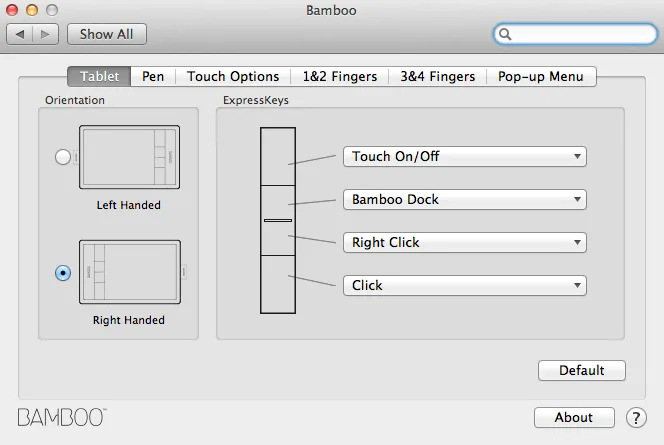
The textured surface actually feels like you’re dragging graphite across paper, so you still get that kinetic satisfaction of drawing. The stylus is thick and chunky, yet still comfortable. For whatever reason, the Capture stylus doesn’t have an eraser, but you can upgrade to the LP170ES stylus if you find it necessary. The Capture has 1024 pressure sensitivity levels so you can achieve amazing line quality and true-to-life brush strokes. It supports multi-touch and gesture support, has 4 programmable ExpressKeys for custom shortcuts and the control panel is full of goodies. It also comes with a bundle of programs including Photoshop Elements and Nik filters.
bamboo control panel
The stylus has 2 programmable buttons, as well, which I currently have set to erase and scroll. I’m still learning what shortcuts and buttons work best for my needs, but I’m having a blast figuring it out. I do wish you could set program specific shortcuts, but I’ll happily settle for the global settings.
There’s a wireless adapter sold separately for around $40, but given the amount of keyboard shortcuts I use, I can’t imagine needing to be farther than the cable allows me.
Overall, I’m really happy with my Bamboo tablet and I’m glad the decision to buy one was a learning process. I still think there’s a place in the market for pairing devices to be used as graphic tablets with laptops, but for now, I’m satisfied doodling on my Bamboo Capture.