
From the Art+Logic archive · written in 2013. The tools may have moved on; the thinking still holds.


Adding scripting capabilities using Qt is a painless process that can give your application’s users incredible powers to extend the functionality of your application. You can expose limited functionality for simple actions or you can expose nearly everything in the application to let the user modify any aspect of the application (for power users obviously). How much power you give the user is up to you.
Combine the scripting capability with the QUiLoader class, which loads in Qt Designer-created files, and you’ve given the user the ability to not only interact with your application but also to extend it with their own widgets.
Part 1 will cover adding simple scripting capabilities and Part 2 will cover adding UI file loading and interaction.
Basic Scripting
The example code used for this article can be found on github.
The basic process for executing scripts is simple: you let users provide script text somehow (through files, a script window, etc.) and then you load the script text into a QScriptEngine instance using QUiLoader::load(). This example assumes there is a QTextEdit object called textScript and one called textOutput for giving the user errors or information about the script. Connect this to a action on your application to execute any scripts in textScript.
void MainWindow::ExecuteScript(void)
{
  QString text = ui->textScript->toPlainText();
  QScriptValue result = fScriptEngine.evaluate(text);
  if (fScriptEngine.hasUncaughtException())
  {
      int line = fScriptEngine.uncaughtExceptionLineNumber();
      QString err = result.toString();
      QString msg = QString("Error at line %1: %2")
          .arg(line).arg(err);
<span style="font-size:.857142857rem;line-height:1.714285714;">
      ui->textOutput->setPlainText(msg);
</span>  }
}
To give the user access to class objects inside your application, you create use the newQObject method of the script engine and set the result QScriptValue object as a property in the script. The following setup function exposes the entire MainWindow class to the script as a property called “app”:
void MainWindow::SetupScriptEngine(void)
{
    // expose this widget to the script
    QScriptValue appContext = fScriptEngine.newQObject(this);
    fScriptEngine.globalObject().setProperty("app", appContext);
}
There are some important things to keep in mind here related to what the the script can access. The script can only has access to properties and public slots (or any methods marked with Q_INVOKABLE) of the class or its parents. One exception to this is that all QMetaClassInfo and QObject public members are available. This means the script can use methods in QObject, such as connect to create signal/slot connects. This information will become very important in Part II.
To give the user’s script a little bit of interaction with the application, lets add a public slot to the MainWindow application and call it feedback.
void MainWindow::feedback(QString message)
{
 ui->textOutput->setPlainText(message);
}
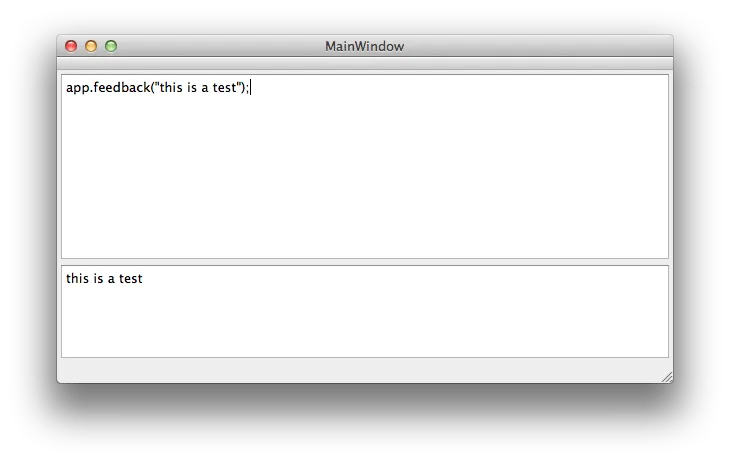
This is a very simple feedback mechanism that lets the user’s script set the text of the output text edit widget. Let’s run the application and try it.
Conclusion
While this is a very simple demonstration of the scripting capabilities, the massive potential for your application and how users can utilize it should be obvious.
In Part 2 I will show how to let users add their own Qt Designer-created widgets for a more full customizable experience.